Home |

Sunday, September 8, 2013

Download Linksys WRT54G Manual PDF

Linksys WRT54G Manual

User Guide made by Cisco to help you begin to operate and understand the functions or features in this Linksys WRT54G Router. And this Linksys WRT54G Manual consists of 61 pages with a size 1.27 MB in pdf file format.
Linksys WRT54G Manual


Linksys WRT54G Manual (User Guide) PDF :

Table of content of Linksys WRT54G Manual :

This user guide covers the steps for setting up and using the Linksys WRT54G Router.
  • Chapter 1: Introduction This chapter describes the Router’s applications and this User Guide.
  • Chapter 2: Planning Your Wireless Network This chapter describes the basics of wireless networking.
  • Chapter 3: Getting to Know the Wireless-G Broadband Router : This chapter describes the physical features of the Router.
  • Chapter 4: Connecting the Wireless-G Broadband Router : This chapter instructs you on how to connect the Router to your network.
  • Chapter 5: Configuring the Wireless-G Broadband Router : This chapter explains how to use the Web-based Utility to configure the settings on the Wireless-G Broadband Router.
  • Troubleshooting : This appendix describes some problems and solutions, as well as frequently asked questions, regarding installation and use of the Wireless-G Broadband Router.
  • Wireless Security : explains the risks of wireless networking and some solutions to reduce the risks.
  • Upgrading Firmware : instructs you on how to upgrade the firmware on the Router should you need to do so.
  • Windows Help : describes how you can use Windows Help for instructions about networking, such as installing the TCP/IP protocol.
  • Finding the MAC Address and IP Address for your Ethernet Adapter. 
  • Glossary : gives a brief glossary of terms frequently used in networking
  • Specifications  supplies the technical specifications for the Router.
  • Warranty Information : provides the warranty information for the Router.
  • Regulatory Information : supplies the regulatory information regarding the Router.
  • Contact Information :  provides contact information for a variety of Linksys resources, including Technical Support.
-------------------------------------------------------------------------------

Download Linksys WRT54G Manual PDF


---------------------------------------------------------------------------------------------

 To Get The manual of other Linksys Models :
  • Go to www.linksys.com and select support
www..Linksys.com
  • Enter your linksys product model
Linksys Manual pdf
 
  • I choose WRTG54S for example .
Linksys WRT54GS Manual
  • click download.
Linksys WRT54G Manual
  • Pick model and version
Linksys WRT54G Manual
  • select user guide.
Linksys WRT54G Manual
  • It should open in a new window as a PDF
Linksys WRT54G Manual Good Luck. Linksys WRT54G Manual  

Thursday, December 20, 2012

how to Secure your linksys router wrt54g ?

Why Should you Secure your linksys router 

wrt54g ?

The big issue with wireless networks is security.Linksys is one of the most popular manufacturers of wireless routers.With many people using Linksys WRT54G at home, it becomes more important to secure the connection to the router form a computer.so just about any hacker who tries to access your router's web interface wirelessly will either already know or be able to guess the default password or anyone with a wireless network card within a few hundred feet of your router can connect to your router. To prevent this from happening, it is important to Secure your Linksys WRT54G
How To Secure your linksys router wrt54g

How to Secure your linksys router wrt54g ?

To Secure your linksys router wrt54g Wireless-G router, use the following steps:

  • Connect your computer to the linksys wrt54g using a network cable, or you can connect through a wireless connection. Note that your wireless card in your computer must be enabled.
Secure linksys router wrt54g

  •  Open your Internet browser and enter your IP adress in the address bar: (http://192.168.1.1. is the default ip for Linksys WRT54G, If it doesn't work you may need to reset your Router! then please read How to reset your linksys Wrt54g
How To Secure your linksys router wrt54g

  •  To login, By default the password is admin and leave the the user ID field blank.


Secure your linksys router wrt54g-Change the default password

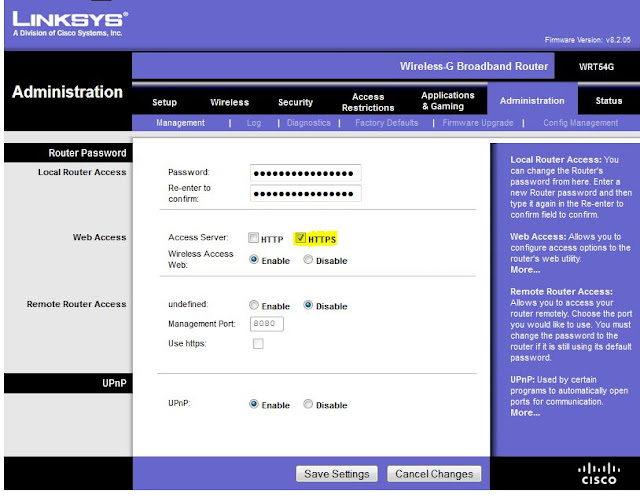
  • After logging in, i recommend that you change the default password by clicking on the Administration tab then Management. Type in a new secure password into both boxes.and save the new password, by clicking Save Settings at the bottom of the page
 linksys wrt54g change the default password


Secure your linksys router wrt54g-Change the Maximum Number of DHCP Users.

  •  now You should now see the “Basic Setup” in your browser. Scroll down the page until you see “Maximum Number of DHCP Users”. *This option will assign a specific number of IP address to computers. If more than this number of computers tries to connect to your Linksys WRT54G routers , they will not be able to.By default, many different computers (default 50) can connect to your router. We will limit the number of computers that can connect to just those computers that you use.
 Basic Setup linksys wrt54g


  •  So you should Count the number of computers that will connect to your Linksys WRT54G , and type the number it into the “Maximum Number of DHCP Users textbox”.
    Maximum Number of DHCP Users textbox
  • click “Save Settings”.andclick “Continue” to return to the Web page. 
  • If you are prompted to login again, then enter you new password in the password field.
  • Navigate back to the “Management” Web page by clicking the “Administrative” option in the menu.

Secure your linksys router wrt54g-encrypt your connection.

  • When you connect to your router , you are doing so over an unsecured connection. To secure your Linksys WRT54G you should now encrypt your connection to your router setup from your computer , click the HTTPS checkbox next to the Access Server option. 
Access Server  linksys wrt54g

  • click “Save Settings” then “Continue” to return to the Web page.                                        * you need to specify that in the address when you connect to the router setup.Since you have changed your connection to HTTPS.
  •  In your browser, change the address from http://192.168.1.1. to: https://192.168.1.1.
  • Login with your password and then click the Wireless menu option.

Secure your linksys router wrt54g using WPA and WEP

  • Click the Wireless Security sub-menu option at the top of the page. This is where we will provide the most important security setting.
Wireless Security linksys wrt54g

  • Next to Security Mode, select WPA Personal from the drop-down list.(If you have trouble connecting to your linksys wrt54g connection, you can try selecting “WEP”, but your connection will be much less secure)
 WPA Personal

  • Next to WPA Algorithm, select AES. If you have trouble connecting to your wireless router, select TKIP.
WPA Algorithm

  • Specify a long WPA Shared Key with a mix of upper and lower case letters, numbers and punctuation.you must get very creative.
WPA Shared Key


Make sure you write down this key somewhere, You will need this information when you connect to your linksys Wrt54g.
Click the Save Settings button .

Another tips to Secure your linksys router wrt54g .

There is one easy security tips is to disable your Linksys WRT54Gfrom broadcasting your network name, or SSID. Computers can still access your network, but they'll need to know the network name - it won't appear automatically when they search for wireless networks. To disable it, click the Wireless tab and then next to Wireless SSID Broadcast, choose Disable. Then Click “Save Settings” .
Wireless SSID Broadcast

Secure your linksys router wrt54g-change the SSID.
You can change the SSID also from this screen. By default, your router sets the network name as "linksys," but you can change it to anything you want -. Beside the “Wireless Network Name (SSID)” option, type in a name for you network connection and click Save Settings. At this point you have Secure your linksys router wrt54g , so all you need to do is connect to your router from your computer. When prompted, enter your WPA Shared Key exactly as you specified it in the router.
Wireless Network Name (SSID)

If you don't understand feel free to ask , I will make a video that explain this in another post.Video:How To Secure your linksys router wrt54g.


Tuesday, December 4, 2012

How To Upgrade the Linksys WRT54G firmware ?

Why should I Upgrade the Linksys WRT54G firmware ?

If you have Linksys WRT54G router, it is necessary that you upgrade the firmware of the Linksys WRT54G router to a latest version, which may resolve lot of problems and bugs including random dropping of wireless connection. You can download your firmware here linksys-wrt54g-firmware.blogspot.com/2012/11/linksys-wrt54g-firmware-download.html

Tuto-video 1 : How To Upgrade the Linksys WRT54G firmware ?

Update your Linksys WRT54G (Linksys WRT54G) firmware (v1.0-v2.0-v2.2-v3.0-v3.1-v4.0-v5.0-v7.0 And v7.2).
Upgrade the Linksys WRT54G firmware -Step 1: Before the upgrade, take a backup of your current Linksys WRT54G Configuration. go to the web interface, go to Administration / Config Management / Backup/ Config.bin, Save this file in your hard disk . Upgrade the Linksys WRT54G firmware ?

Upgrade the Linksys WRT54G firmware -Step 2:

go to the web interface, go to Administration/ Firmware Upgrade/ Choose the latest file that you downloaded above / Click on Upgrade. Once the upgrade of your Linksys WRT54G started just wait until the end . do not click on anything in the inteface.

Upgrade the Linksys WRT54G firmware -Step 3:

Once the upgrade of your Linksys WRT54G firmware is finish , verify your new firmware version to make sure the upgrade was successfully completed.
 Next article : Install DD-WRT Firmware on a Linksys WRT54G (Linksys WRT54G). 
  Feel free to ask and share to your friends.
"Upgrade the Linksys WRT54G firmware (Linksys WRT54G)"
 

Saturday, November 17, 2012

How to reset Linksys WRT54G router ?

reset Linksys WRT54G Router (Linksys WRT54G ) :

Hi everyone, These days I've been receiving a lot of questions, One of this questions is :
 how to reset Linksys WRT54G router (Linksys WRT54G) back to 
the factory defaults ?
reset Linksys WRT54G
You may need to do reset Linksys WRT54G if you open your web browser and find that you have a sluggish Internet connection or no Internet connection at all , or if you forget your Linksys WRT54G’s password or made a mistake and you can’t connect to your Linksys WRT54G.This article contains suggestions for resetting your Linksys WRT54G so that you can get your Internet connection up and running again, I’ll outline 2 methods you can follow to reset Linksys WRT54G Wireless-G router.

Tutorial Video:

How to reset Linksys WRT54G router (2 Methods To Reset your Linksys Wrt54g ) 

First method " How to reset Linksys WRT54G router ?"

To reset Linksys WRT54G. Press the Reset button (small rounded button , it will likely be gray or red and may be sunk inside the plastic casing of the router) with a pen or anything  for 30 seconds , and after that then you unplug the power of your Linksys WRT54G and you keep holding down on the reset button for an additional 30 seconds, after that you plug it  back in then you wait for another 30 seconds and then you're done.
( reset Linksys WRT54G (Linksys WRT54G)to factory defaults will remove all settings you have configured for the router, such as security settings and passwords) reset Linksys WRT54G Reset button of linksys wrt54g
Now you can access your router control panel ( to change your password or ....) by typing your Default IP adress of linksys wrt54g in the address bar of your Web browser . For the login , Read this Article "Linksys wrt54g ip address default"
Congratulations! Your Linksys WRT54G has now been resetting.

Second method " How to reset Linksys WRT54G router ?"

Through the Control panel : Use the following steps to reset the router using this method.

1) Open your Web browser and type the IP address of your router, enter your user ID And password when prompted ( if you don't know your IP address and how to login , Read this Article "Linksys wrt54g ip address default" ) ip adress linksys
 2)At the top of the Web page, click “Administration” and then “Factory Defaults”. 3)Click the "Restore Factory Defaults" button and then click “Yes” when you are asked if you are sure if you want to reset your Linksys WRT54G. reset wrt54g

4)Now click the “Save Settings” button at the bottom of the Web page. Congratulations! Your Linksys WRT54G has now been resetting. Those are 2 methods you can use to reset Linksys WRT54G.